byteDEVKIT-stm32mp2 OSM (Yocto 5.0.15)
Downloads
SD card image
Download |
Checksum (SHA256) |
|---|---|
bytesatwork-minimal-image-bytedevkit-stm32mp2.rootfs-20260528145037.wic.gz |
6f9bf96350a2bb7150501c4299fc6f55360ee3c510129f31d51a6327e900c46c |
bytesatwork-minimal-image-bytedevkit-stm32mp2.rootfs-20260528145037.wic.bmap |
13503b393eae55329c3c14ec604fab784cb22291a63144f0489abc1d4ce4bfe0 |
Toolchain
Download |
Checksum (SHA256) |
|---|---|
286a3395dee2d1ed64469fef01bb07b00b19a11db7ec4133692dfc9ead7935e5 |
Image
How do you flash the image?
Attention
You need a microSD card with at least 8GB capacity.
All existing data on the microSD card will be lost.
Do not format the microSD card before flashing.
Windows
Unzip the file
bytesatwork-minimal-image-bytedevkit-stm32mp2.rootfs.wic.gz(e.g. with 7-zip)Write the resulting file to the microSD card with a tool like Roadkils Disk Image
Linux
gunzip -c bytesatwork-minimal-image-bytedevkit-stm32mp2.rootfs.wic.gz | dd of=/dev/mmcblk<X> bs=8M conv=fsync status=progress
Hint
To improve write performance, you could use bmap-tools under Linux:
bmaptool copy bytesatwork-minimal-image-bytedevkit-stm32mp2.rootfs.wic.gz /dev/mmcblk<X>
How do you build an image?
Use repo to download all necessary repositories:
$ mkdir -p ~/workdir/bytedevkit-stm32mp2/5.0; cd ~/workdir/bytedevkit-stm32mp2/5.0
$ repo init -b scarthgap -u https://github.com/bytesatwork/bsp-platform-st.git
$ repo sync
If those commands are completed successfully, the following command will set up a Yocto Project environment for byteDEVKIT-stm32mp2:
$ cd ~/workdir/bytedevkit-stm32mp2/5.0
$ MACHINE=bytedevkit-stm32mp2 DISTRO=poky-bytesatwork EULA=1 . setup-environment build
The final command builds the development image:
$ cd $BUILDDIR
$ bitbake bytesatwork-minimal-image
The output is found in:
~/workdir/bytedevkit-stm32mp2/5.0/build/tmp/deploy/images/bytedevkit-stm32mp2
Hint
For additional information about yocto images and how to build them, please visit: https://docs.yoctoproject.org/5.0.15/brief-yoctoprojectqs/index.html#building-your-image.
How to modify the image
The image recipes can be found in
~/workdir/<machine name>/<yocto version>/sources/meta-bytesatwork/recipes-core/imagesThis is relative to where you started the
repocommand to fetch all the sources.Edit the minimal-image recipe
bytesatwork-minimal-image.bbAdd the desired software-package to
IMAGE_INSTALLvariable, for example addnet-toolstobytesatwork-minimal-image.bbRebuild the image by:
$ cd ~/workdir/<machine name>/<yocto version>
$ MACHINE=<machine name> DISTRO=poky-bytesatwork EULA=1 . setup-environment build
$ bitbake bytesatwork-minimal-image
How to rename the image
If you want to rename or copy an image, simply rename or copy the image recipe by:
$ cd ~/workdir/<machine name>/<yocto version>/sources/meta-bytesatwork/recipes-core/images
$ cp bytesatwork-minimal-image.bb customer-example-image.bb
Troubleshooting
Image size is too small
If you encounter that your image size is too small to install additional software, please have a look at the
IMAGE_ROOTFS_SIZEvariable under~/workdir/<machine-name>/<yocto version>/sources/meta-bytesatwork/recipes-core/images/bytesatwork-minimal-image.bb. Increase the size if necessary.
Toolchain
How do you install the toolchain?
Simply download the toolchain and execute the downloaded file, which is a self-extracting shell script.
Hint
If you encounter problems when trying to install the toolchain, make sure the downloaded toolchain is executable. Run chmod +x /<path>/<toolchain-file>.sh to make it executable.
Important
- The following tools need to be installed on your development system:
xz(Debian package:xz-utils)python(any version)gcc
How do you use the toolchain?
Source the installed toolchain:
source /opt/poky-bytesatwork/5.0.15/environment-setup-cortexa35-poky-linux
Check if Cross-compiler is available in environment:
echo $CC
You should see the following output:
aarch64-poky-linux-gcc -mcpu=cortex-a35+crc -mbranch-protection=standard -fstack-protector-strong -O2 -D_FORTIFY_SOURCE=2 -Wformat -Wformat-security -Werror=format-security --sysroot=/opt/poky-bytesatwork/5.0.15/sysroots/cortexa35-poky-linux
Crosscompile the source code, e.g. by:
$CC helloworld.c -o helloworld
Check generated binary:
file helloworld
The output that is shown in prompt afterwards:
helloworld: ELF 32-bit LSB pie executable, ARM, EABI5 version 1
How to bring your binary to the target?
Connect the embedded device’s ethernet to your LAN
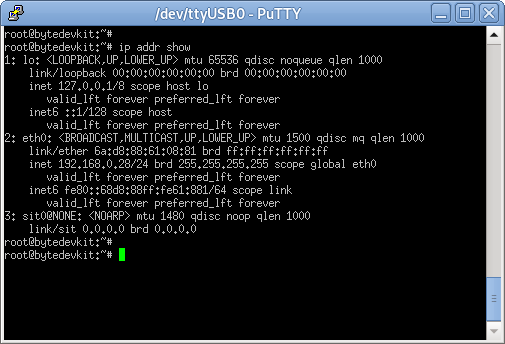
Determine the embedded target IP address by
ip addr show
Copy your binary, e.g.
helloworldto the target byscp helloworld root@<ip address of target>:/tmp

Run
chmod +xon the target to make your binary executable:chmod +x /<path>/<binary name>Run your binary on the target:
/<path>/<binary name>
How do you build a toolchain?
$ cd ~/workdir/bytedevkit-stm32mp2/5.0
$ repo init -b scarthgap -u https://github.com/bytesatwork/bsp-platform-st.git
$ repo sync
If those commands are completed successfully, the following command will set up a Yocto Project environment for byteDEVKIT-stm32mp1:
$ cd ~/workdir/bytedevkit-stm32mp2/5.0
$ MACHINE=bytedevkit-stm32mp2 DISTRO=poky-bytesatwork EULA=1 . setup-environment build
The final command builds an installable toolchain:
$ cd $BUILDDIR
$ bitbake bytesatwork-minimal-image -c populate_sdk
The toolchain is located under:
~/workdir/bytedevkit-stm32mp2/5.0/build/tmp/deploy/sdk
How to modify your toolchain
Currently the bytesatwork toolchain is generated out of the bytesatwork-minimal-image recipe. If you want to add additional libraries and development headers to customize the toolchain, you need to modify the bytesatwork-minimal-image recipe. It can be found under ~/workdir/<machine name>/<yocto version>/sources/meta-bytesatwork/recipes-core/images
For example: if you want to develop your own application utilizing CAN communication and need libsocketcan and the corresponding header files, edit the recipe bytesatwork-minimal-image.bb and add libsocketcan to the IMAGE_INSTALL variable.
This will provide the libsocketcan libraries and development headers in the toolchain. After adding additional software components, the toolchain needs to be rebuilt by:
$ cd ~/workdir/<machine name>/<yocto version>
$ MACHINE=<machine> DISTRO=poky-bytesatwork EULA=1 . setup-environment build
$ bitbake bytesatwork-minimal-image -c populate_sdk
The newly generated toolchain will be available under:
~/workdir/<machine name>/<yocto version>/build/tmp/deploy/sdk
For additional information, please visit: https://docs.yoctoproject.org/5.0.15/overview-manual/concepts.html#cross-development-toolchain-generation.
Kernel
Download the Linux Kernel
Device |
Branch |
git URL |
|---|---|---|
bytedevkit-stm32mp2 |
baw-v6.6-stm32mp-r2 |
Build the Linux Kernel
For both targets, an ARM toolchain is necessary. You can use the provided toolchain from Toolchain or any compatible toolchain (e.g. from your distribution)
Important
- The following tools need to be installed on your development system:
gitmakebc
Note
The following instructions assume, you installed the provided toolchain for the respective target.
Important
- The following tools need to be installed on your development system:
OpenSSL headers (Debian package:
libssl-dev)depmod(Debian package:kmod)
Download kernel sources
Download the appropriate kernel from Download the Linux Kernel.
Source toolchain
source /opt/poky-bytesatwork/5.0.15/environment-setup-cortexa35-poky-linux
Create defconfig
make bytedevkit_stm32mp2_defconfig
Build Linux kernel
make -j `nproc` Image st/stm32mp257f-bytedevkit.dtb modules
Install kernel and device tree
To use the newly created kernel, device tree and/or module, the necessary files need to be installed on the target. This can be done either via Ethernet (e.g.
scp) or by copying the files to the SD card.Note
For scp installation: Don’t forget to mount /boot on the target.
File
Target path
Target partition
arch/arm64/boot/Image/boot/Image/dev/mmcblk0p7arch/arm64/boot/dts/st/stm32mp257f-bytedevkit.dtb/boot/stm32mp257f-bytedevkit.dtb/dev/mmcblk0p7Note
After installing a new kernel, it often fails to load modules, as the _signature_ of the kernel changed and it fails to find its corresponding modules folder. This issue can often be resolved with a symlink:
ln -s /lib/modules/<EXISTING FOLDER> /lib/modules/`uname -r`
Otherwise, please follow the instructions to copy the kernel modules
Install kernel modules
To copy all available modules to the target, it’s best to deploy them locally first and then copy all modules to the target.
mkdir /tmp/bytedevkit-stm32mp2
make INSTALL_MOD_PATH=/tmp/bytedevkit-stm32mp2 modules_install
Now you can copy the content of the folder
/tmp/bytedevkit-stm32mp2into the target’s root folder (/) which is partition/dev/mmcblk0p7.
U-Boot
Download U-Boot Source Code
Device
Branch
git URL
bytedevkit-stm32mp2
baw-v2023.10-stm32mp-r2
Build U-Boot
Download U-Boot sources
Download the appropriate U-Boot from Download U-Boot Source Code.
Source toolchain
source /opt/poky-bytesatwork/5.0.15/environment-setup-cortexa35-poky-linux
Create defconfig
make stm32mp257_bytedevkit_defconfig
Build U-Boot
make -j `nproc` DEVICE_TREE=stm32mp257f-bytedevkit all
Download ATF sources
Name
Branch
git URL
Arm-Trusted-Firmware
baw-v2.10-stm32mp-r2
Build ATF
unset CFLAGS
unset LDFLAGS
make CROSS_COMPILE=aarch64-linux-gnu- PLAT=stm32mp2 SPD=opteed DTB_FILE_NAME=stm32mp257f-bytedevkit.dtb STM32MP_SDMMC=1 STM32MP_LPDDR4_TYPE=1 ST_TF_A_DEBUG_TRACE=1
Download OP-TEE sources
Name
Branch
git URL
Optee
baw-4.0.0-stm32mp-r2
Build OP-TEE
unset LDFLAGS
unset CFLAGS

make CROSS_COMPILE64=aarch64-linux-gnu- CROSS_COMPILE32=arm-linux-gnu- ARCH=arm PLATFORM=stm32mp2 CFG_EMBED_DTB_SOURCE_FILE=stm32mp257f-bytedevkit.dts CFG_TEE_CORE_DEBUG=y CFG_TEE_CORE_LOG_LEVEL=1 all
Install U-Boot on SD card
To use the newly created U-Boot, the following files need to be installed on the SD card:
BL2:
tf-a-stm32mp257f-bytedevkit.stm32BL31:
fip.binFor detailed information about the boot and build process see: ST TF-A overview
Copy
tf-a-stm32mp257f-bytedevkit.stm32from ATF buildcp arm-trusted-firmware-stm32mp/build/stm32mp2/release/tf-a-stm32mp257f-bytedevkit.stm32 .
Create
fip.binmake CROSS_COMPILE=aarch64-linux-gnu- PLAT=stm32mp2 SPD=opteed \ DTB_FILE_NAME=stm32mp257f-bytedevkit.dtb \ STM32MP_USB_PROGRAMMER=1 \ STM32MP_LPDDR4_TYPE=1 \ BL33=../u-boot-stm32mp-internal/u-boot-nodtb.bin \ BL33_CFG=../u-boot-stm32mp-internal/u-boot.dtb \ BL32=../optee-os-stm32mp-internal/out/arm-plat-stm32mp2/core/tee-header_v2.bin \ BL32_EXTRA1=../optee-os-stm32mp-internal/out/arm-plat-stm32mp2/core/tee-pager_v2.bin \ BL32_EXTRA2=../optee-os-stm32mp-internal/out/arm-plat-stm32mp2/core/tee-pageable_v2.bin \ ST_TF_A_DEBUG_TRACE=1 \ bl31 fip
Important
If an error occurs, check the paths used in the command. They need to point to the u-boot, ATF and OP-TEE folder.
Copy
fip.binfrom ATF buildcp arm-trusted-firmware-stm32mp/build/stm32mp2/release/fip.bin .
Copy to SD card
sudo dd if=tf-a-stm32mp257f-bytedevkit.stm32 of=/dev/sdX1 bs=1M conv=fdatasync status=progress
sudo dd if=tf-a-stm32mp257f-bytedevkit.stm32 of=/dev/sdX2 bs=1M conv=fdatasync status=progress


sudo dd if=fip.bin of=/dev/sdX5 conv=fdatasync
sudo dd if=fip.bin of=/dev/sdX6 conv=fdatasync
Note
Replace
/dev/sdXwith correct target device.
